Introduction
Having issues with VoiceMaster? This guide provides a systematic approach to resolving problems. We'll start with automated diagnostics, then move to permission fixes, and finally show you how to get proper support with detailed error information.
Check Bot Status First
Before troubleshooting any issues, make sure VoiceMaster is online and functioning properly.
Verify Bot is Online
First, check if the bot is actually online:
- Check Server Member List: Look for VoiceMaster in your server's member list
- Verify Online Status: The bot should show as online with a green indicator
- Test Basic Commands: Try a simple command like
/pingto test responsiveness
Check Status Page
Visit our status page to get detailed information about the bot's current state:
- Visit our status page for real-time bot status information
- Check for ongoing issues or maintenance notifications
- View service uptime and performance metrics
- Get updates on any current problems or resolutions
If Bot is Offline
If the bot appears offline or unresponsive:
- Check our status page for any ongoing issues
- Wait a few minutes and try again
- Re-invite the bot if the issue persists
- Contact support if the bot remains offline
Step 1: Use the Built-in Troubleshooting Command
The most important and effective way to diagnose VoiceMaster issues is to use our automated troubleshooting command. This should always be your first step when experiencing any problems.
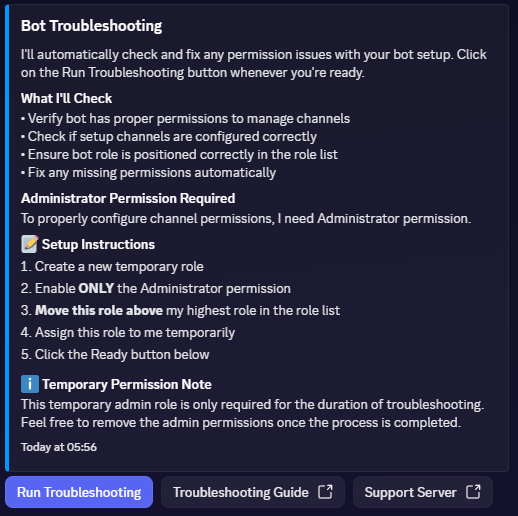
The automated troubleshooting command interface showing permission checks and setup instructions
Running the Troubleshoot Command
Use the following command to automatically diagnose and fix known issues:
/troubleshoot- Bot permissions and role hierarchy positioning
- Channel configuration and setup validation
- Database connectivity and data integrity
- Command availability and functionality
- Server-specific settings and configuration issues
- Voice channel permissions and access
- Slash command registration and availability
How the Troubleshoot Command Works
The troubleshoot command is an automatic function that:
- Automatically fixes known issues by granting itself the required permissions
- Identifies specific permission problems and resolves them automatically
- Highlights configuration errors and provides automatic fixes where possible
- Validates that fixes have been applied correctly and confirms resolution
- Provides detailed feedback about what was fixed and what may need manual attention
What to Expect
The troubleshoot command will automatically resolve most common issues without requiring manual intervention. It will provide detailed feedback about what was fixed and any remaining issues that may need additional attention.
Step 2: Grant Admin Permissions (If Issues Persist)
If the
/troubleshoot command didn't resolve your issues, the next step is to temporarily grant VoiceMaster administrator permissions to test if permission restrictions are causing the problem.Why Admin Permissions Help
Granting administrator permissions helps determine if the issue is related to specific permission restrictions. This is a diagnostic step to isolate the root cause.
- Administrator permissions bypass most Discord permission restrictions
- This helps identify if the issue is permission-related or something else
- It's a temporary diagnostic measure, not a permanent solution
- Once the issue is identified, you can adjust specific permissions as needed
How to Grant Admin Permissions
To temporarily grant administrator permissions for testing purposes:
1
Go to Server Settings → Roles
2
Find the VoiceMaster role in your role list
3
Enable Administrator permission for the VoiceMaster role
4
Test the functionality that was previously not working
5
Check if the issue is resolved with admin permissions enabled
After Testing with Admin Permissions
Once you've tested with admin permissions:
- If the issue is resolved: The problem was permission-related. You can now disable admin permissions and grant only the specific permissions needed
- If the issue persists: The problem is not permission-related and requires further investigation
- Document the results: Note whether admin permissions fixed the issue or not for support purposes
Reverting Admin Permissions
After testing, you should remove admin permissions and grant only the necessary specific permissions:
- Manage Roles: To manage channel permissions
- Manage Channels: To create, modify, and delete channels
- View Channel: To see channels
- Send Messages: To send messages in text channels
- Send Messages in Threads: To send messages in threads
- Create Public Threads: To create public threads
- Create Private Threads: To create private threads
- Manage Threads: To manage thread settings
- Embed Links: To send embeds
- Use External Emojis: To use emojis from other servers
- Connect: To be able to see voice channels
- Move Members: To move members between voice channels
Category and Join-to-Create Channel Permissions
For the category channel and "Join To Create" channel, the bot should have these specific permissions:
- View Channel: To see the channel
- Manage Channels: To manage the channel
- Connect: To be able to see the voice channel
- Move Members: To move members
- Manage Permissions: To manage channel-specific permissions
Step 3: Get Support with Proper Error Information
If the previous steps didn't resolve your issue, you'll need to contact our support team with specific error information. This section shows you how to gather the necessary details for effective support.
If You're Getting Error Messages
If you're seeing specific error messages, please contact us with the exact error details:
- Copy the exact error message you're receiving
- Note when the error occurs (what command or action triggers it)
- Describe the steps that lead to the error
- Contact our support team with this information
If You're Not Getting Error Messages
If the issue occurs without clear error messages, you need to enable logging to capture the problem:
/set channel type:Log Channel channel:#logs1
Create a dedicated channel for logs (e.g., #bot-logs)
2
Run the logging command to enable error capture
3
Reproduce the issue while logging is active
4
Check the log channel for any error messages or warnings
5
Contact support with the log information
What Information to Include in Support Requests
When contacting support, please include:
- Exact error messages (if any) or log entries from the log channel
- Steps to reproduce the issue (what you did before the problem occurred)
- When the issue started (recently or has been ongoing)
- What you've already tried (troubleshoot command results, admin permissions test)
- Screenshots of any error messages or unusual behavior
Contacting Our Support Team
Once you've gathered the necessary error information, you can contact our support team for assistance.
Join Our Support Server
The best way to get help is through our official support server:
- Join our Discord server: Support Server
- Create a support ticket in the appropriate channel
- Provide all the information you gathered from the previous steps
- Be patient - our support team will respond as quickly as possible
Summary of Troubleshooting Steps
Here's a quick summary of the troubleshooting process:
Step-by-Step Process
1
Check bot status - Verify the bot is online and check our status page
2
Run
/troubleshoot - This is the most important first step3
Grant admin permissions - Test if the issue is permission-related
4
Enable logging - Use
/set channel type:Log Channel channel:#logs if no errors are visible5
Reproduce the issue - Try to trigger the problem while logging is active
6
Contact support - Join Support Server and create a ticket with all the information
Important Notes
- Always start with
/troubleshoot- This resolves most issues automatically - Admin permissions are temporary - Only use them for testing, then revert to specific permissions
- Logging is essential - Without error messages, we can't help effectively
- Be specific - The more details you provide, the faster we can help
- Include everything - Error messages, logs, steps to reproduce, and what you've tried
This guide was last updated on October 9, 2025. For the most current information, please refer to our official documentation and support resources.
Found translation issues or think this guide needs updating? Let us know via our support server.